Enable 2FA
Download PDFWHY SET-UP 2FA?
Two-Factor Authentication (2FA) adds an extra layer of security to your Silver Bullion account.
When 2FA is enabled, you will also be asked to enter a one-time verification code sent to your mobile phone or generated by an authenticator app. This helps verify that it is you signing in. Even if someone knows your password, they cannot access your account without your verification code. Enabling 2FA greatly reduces the risk of unauthorised access to your account and helps protect your personal information and assets.
We strongly recommend enabling 2FA, as it is one of the simplest and most effective ways to keep your account secure.
CHOOSE YOUR 2FA METHOD
Authenticator Apps are recommended because they are more secure than SMS and continue to work even without an internet or mobile network connection. We recommend a trusted Time-based One-Time Password (TOTP) Authenticator app such as Google Authenticator and Microsoft Authenticator.
- I WANT TO ENABLE 2FA USING AUTHENTICATOR APP (Recommended)
- I WANT TO ENABLE 2FA USING SMS
- I WANT TO ENABLE 2FA USING PASSKEY (Available from 24 August 2026)
THE STEPS:
| Step 1 | Download your preferred Authenticator App. (Note: We recommend a trusted Time-based One-Time Password (TOTP) Authenticator app such as Google Authenticator and Microsoft Authenticator). |
| Step 2 | Visit our website at WWW.SILVERBULLION.COM.SG and Log-In with your Silver Bullion Account. |
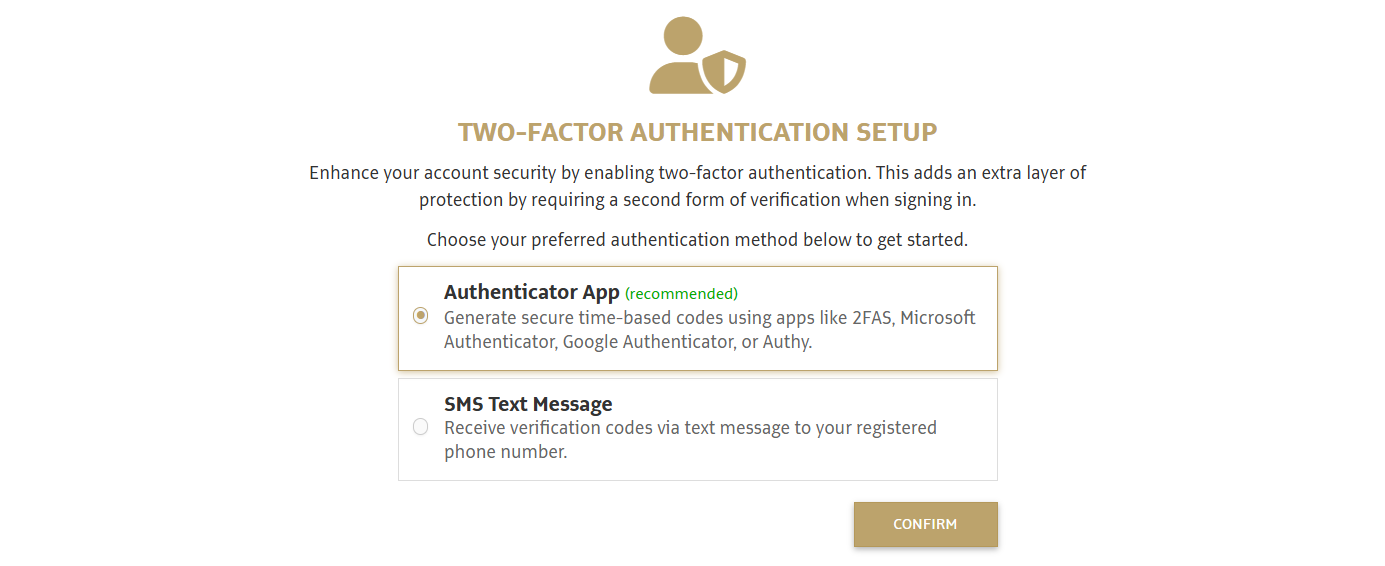
| Step 3 | As 2FA is required for all accounts, the 2FA Setup page will be displayed upon login. Select the Authenticator App option. Click CONFIRM to proceed to the next page.
|
| Step 4 |
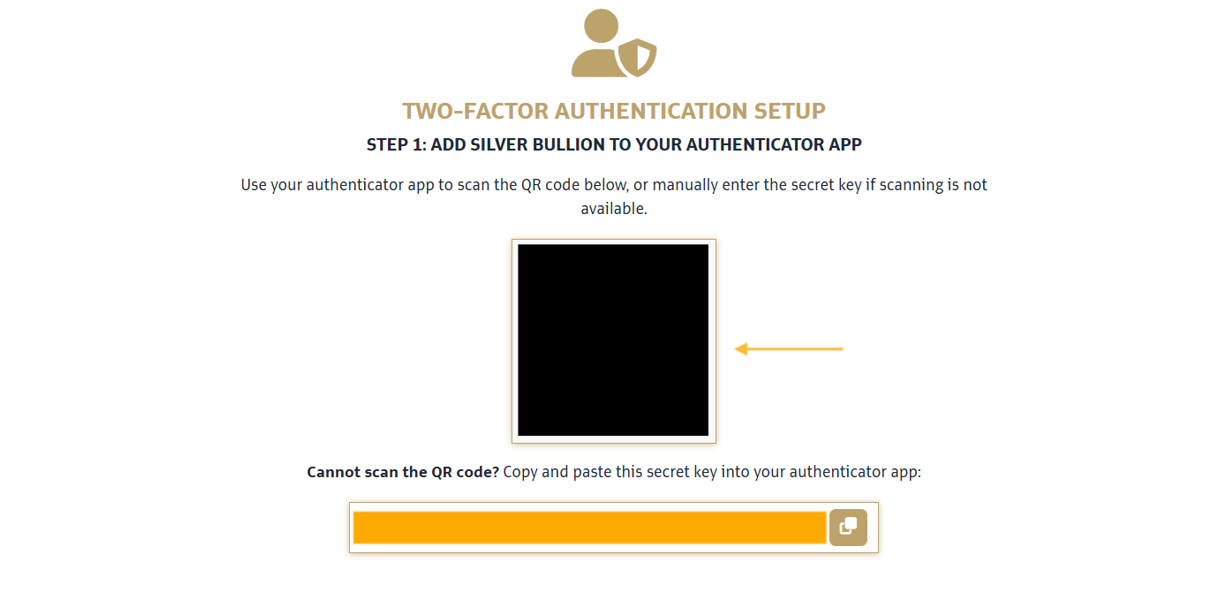
A QR code and secret key will be displayed on the 2FA Setup page.
|
| Step 5 |
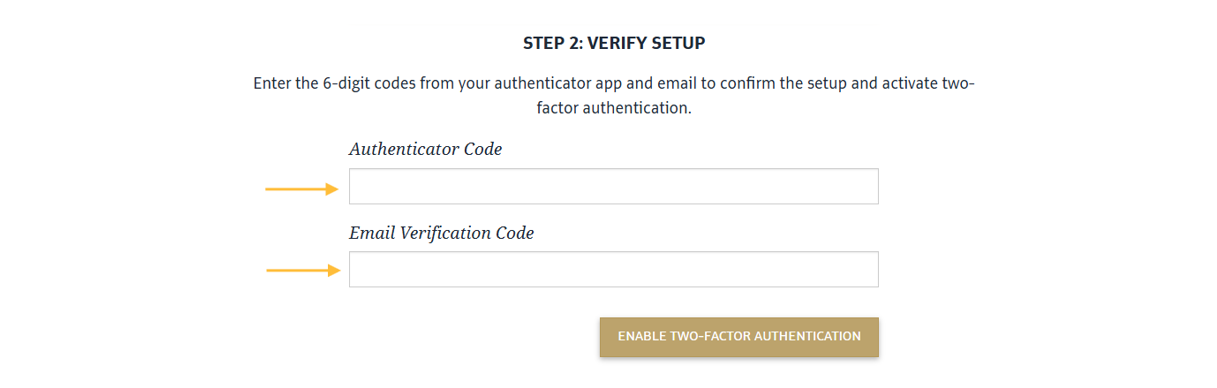
On the same page, enter the six-digit code generated by your Authenticator App into the Authenticator Code field. Then, enter the verification code sent to your registered email address into the Email Verification Code field.
|
| Step 6 |
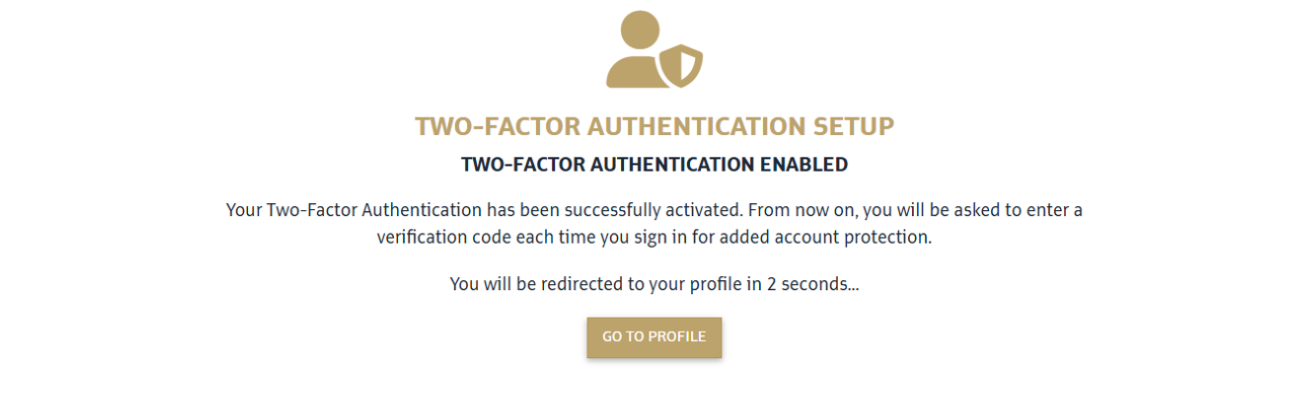
When you are done, click ENABLE TWO-FACTOR AUTHENTICATION.
|
THE STEPS:
| Step 1 | Visit our website at WWW.SILVERBULLION.COM.SG and Log-In with your Silver Bullion Account. |
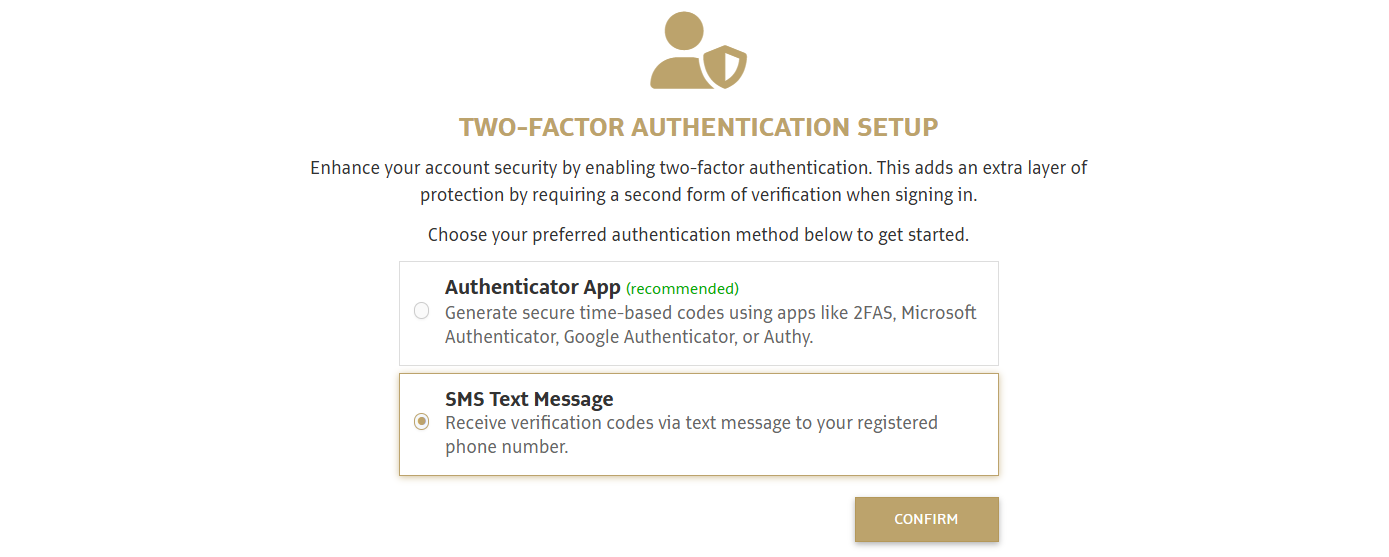
| Step 2 | As 2FA is required for all accounts, the 2FA Setup page will be displayed upon login. Select the SMS Text Message option. Click CONFIRM to proceed to the next page.
|
| Step 3 |
A verification code will be sent to your registered mobile phone. If you do not receive the SMS verification code, we recommend using an Authenticator App instead. |
| Step 4 |
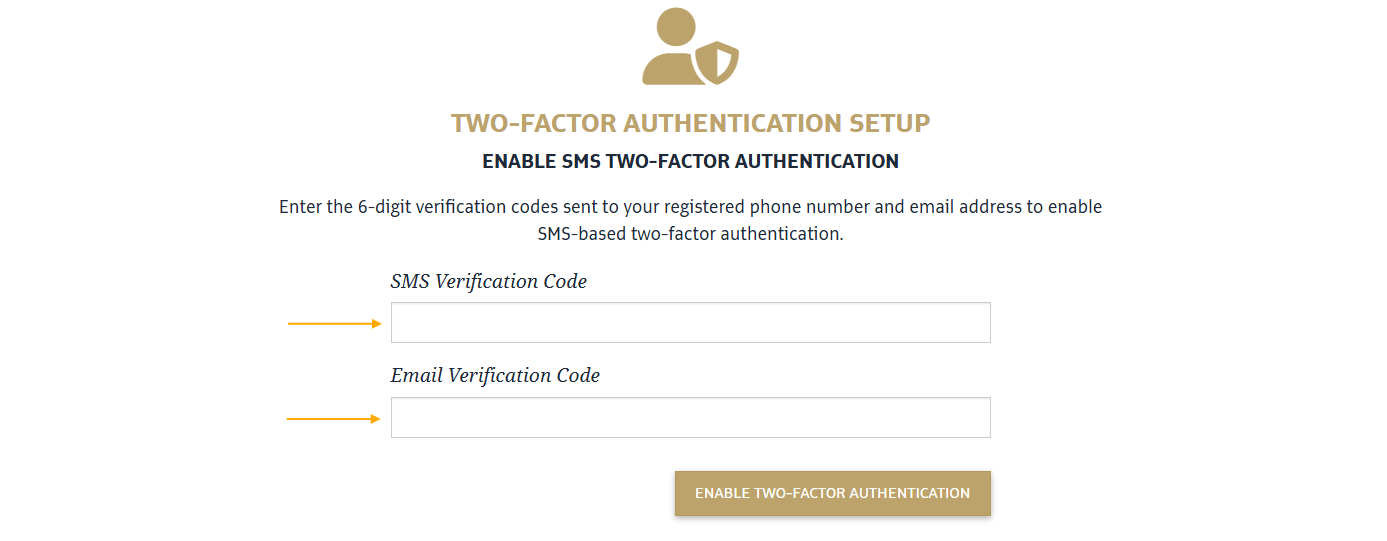
Enter the SMS verification code into the SMS Verification Code field. Then, enter the verification code sent to your registered email address into the Email Verification Code field.
|
| Step 5 |
When you are done, click ENABLE TWO-FACTOR AUTHENTICATION.
|
THE STEPS:
| Step 1 | Visit our website at WWW.SILVERBULLION.COM.SG and Log-In with your Silver Bullion Account. |
| Step 2 |
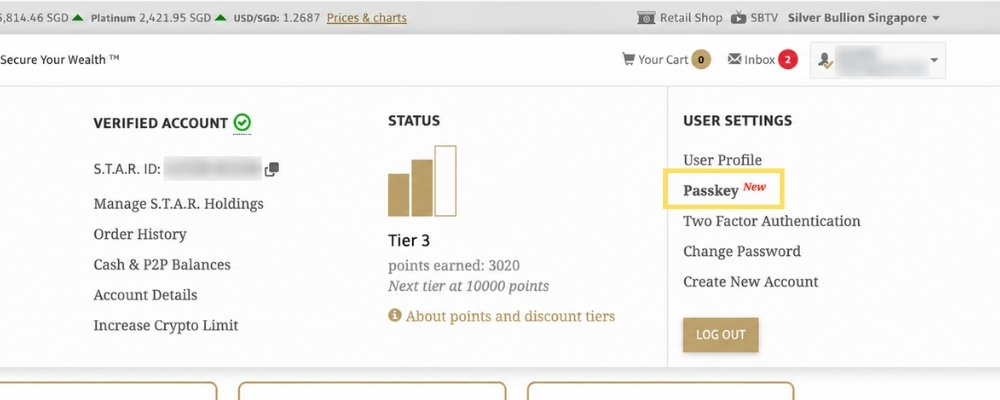
Click on your PROFILE (top right corner of the page), then select PASSKEY.
|
| Step 3 |
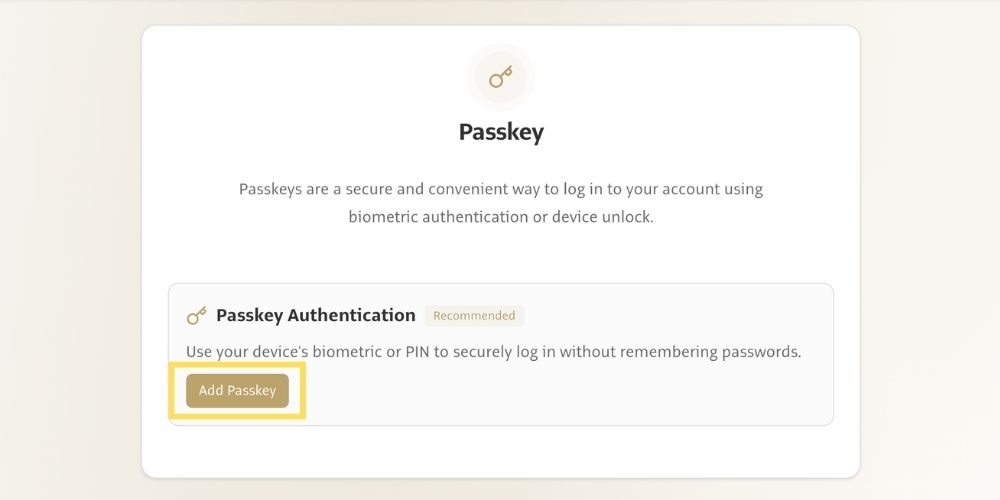
Under Passkey Authentication, select ADD PASSKEY.
|
| Step 4 |
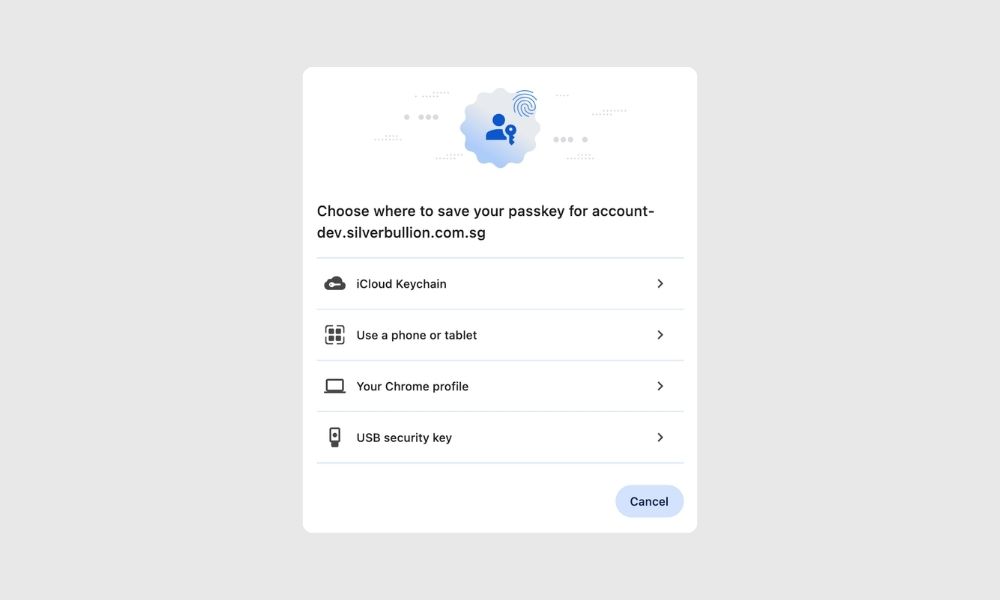
Choose where you would like to save your passkey. The options and instructions displayed may vary depending on your device, browser and operating system.
|
| Step 5 |
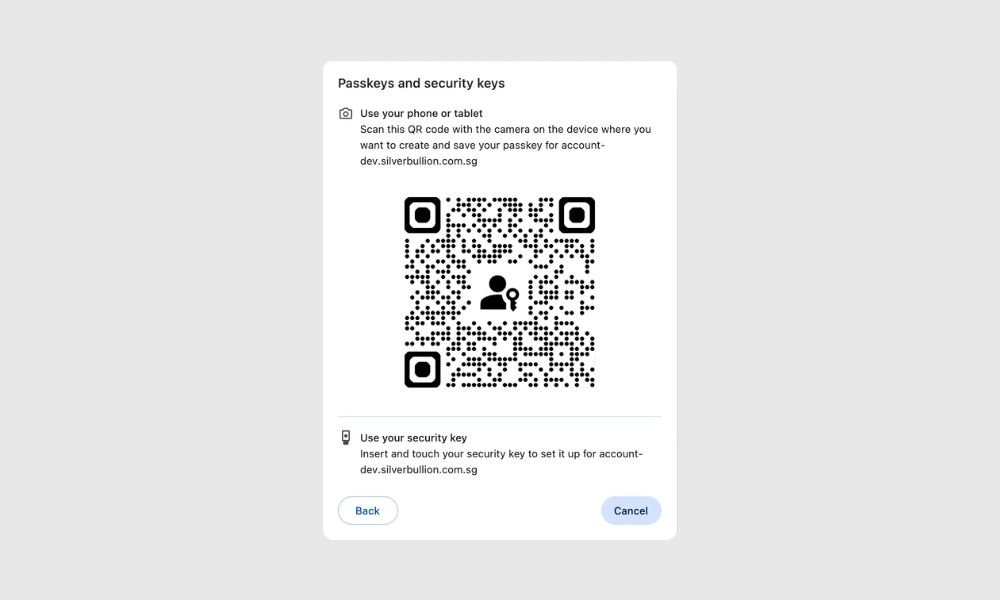
Follow the instructions displayed by your device or browser to create and save your passkey. If you select Use a phone or tablet, scan the QR code using the camera on the device where you want to save the passkey. Then, follow the instructions displayed on that device.
|
| Step 6 |
Verify your identity using your device’s fingerprint recognition, facial recognition, PIN, screen lock or compatible security key. The available verification methods may vary depending on your device, browser and operating system. |
| Step 7 |
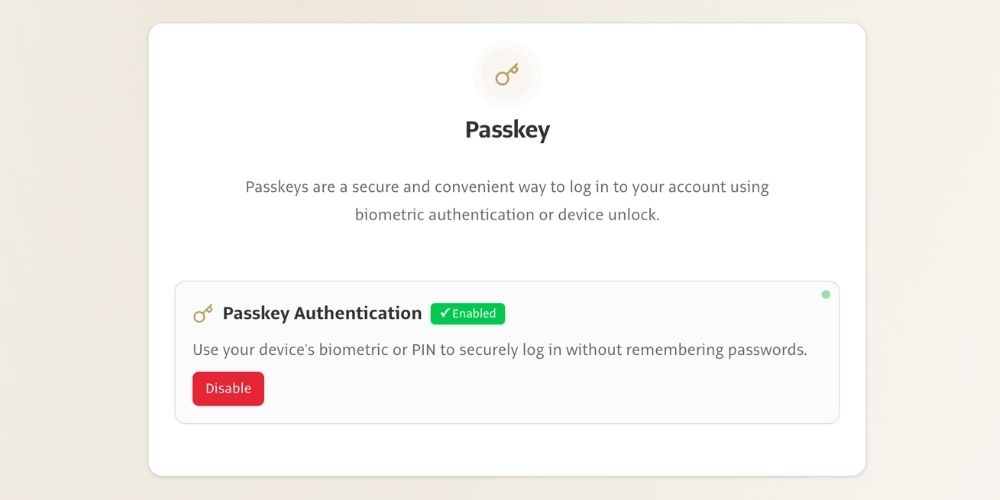
Once the setup is complete, Passkey Authentication will display ENABLED.
|
THE STEPS:
| Step 1 |
Visit our website at WWW.ACCOUNT.SILVERBULLION.COM.SG to log in to your Silver Bullion Account. |
| Step 2 |
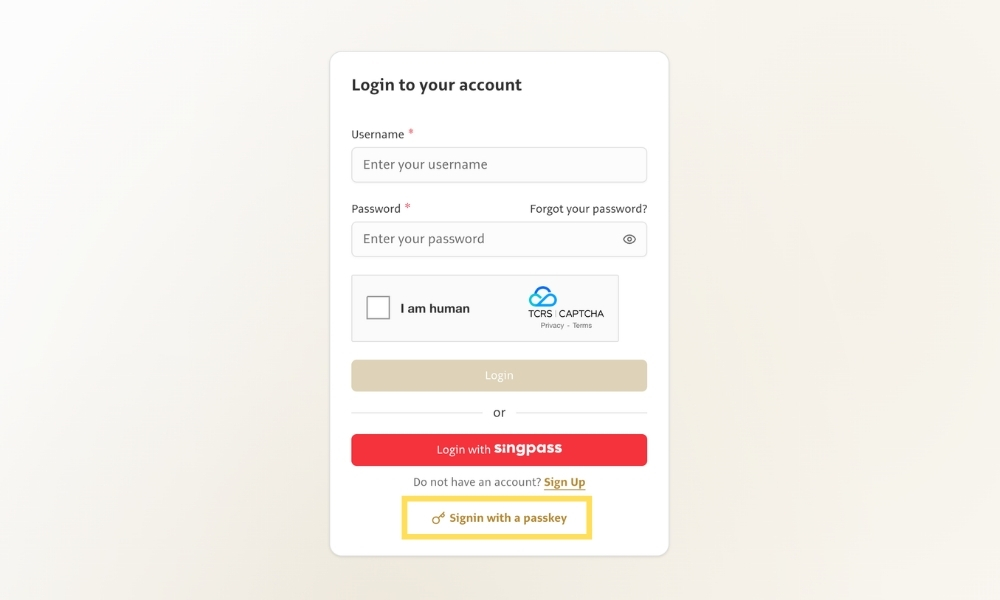
On the login page, select SIGNIN WITH A PASSKEY.
|
| Step 3 |
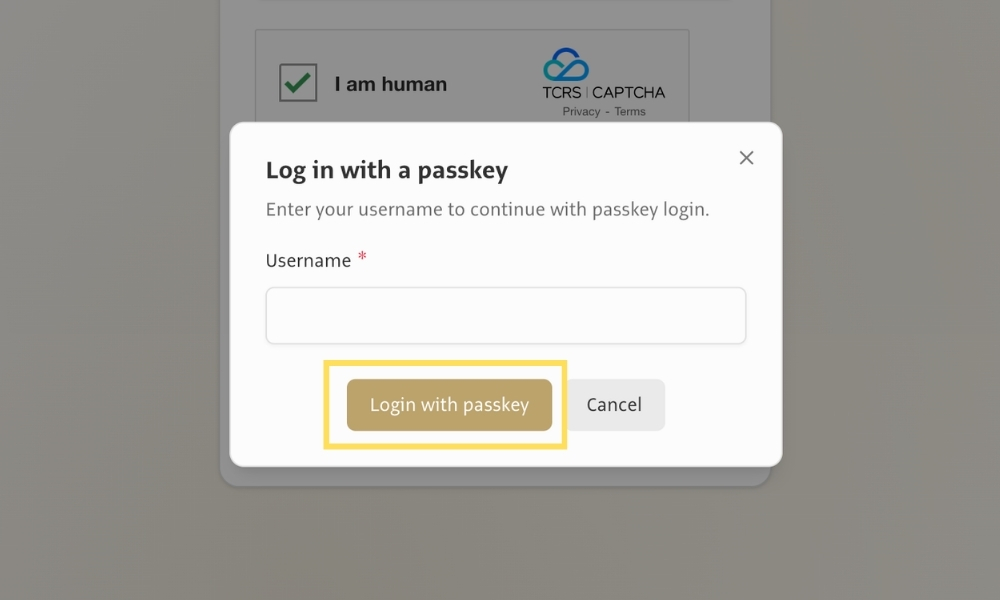
Enter your username, then select LOGIN WITH PASSKEY.
|
| Step 4 |
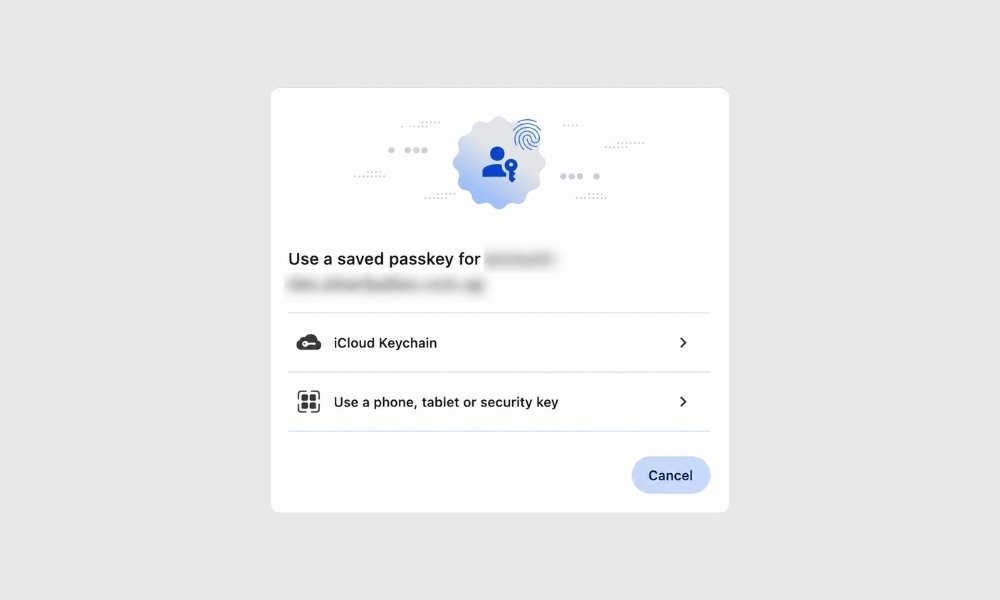
Choose where your passkey is saved. The options and instructions displayed may vary depending on your device, browser, operating system and where your passkey is saved.
|
| Step 5 |
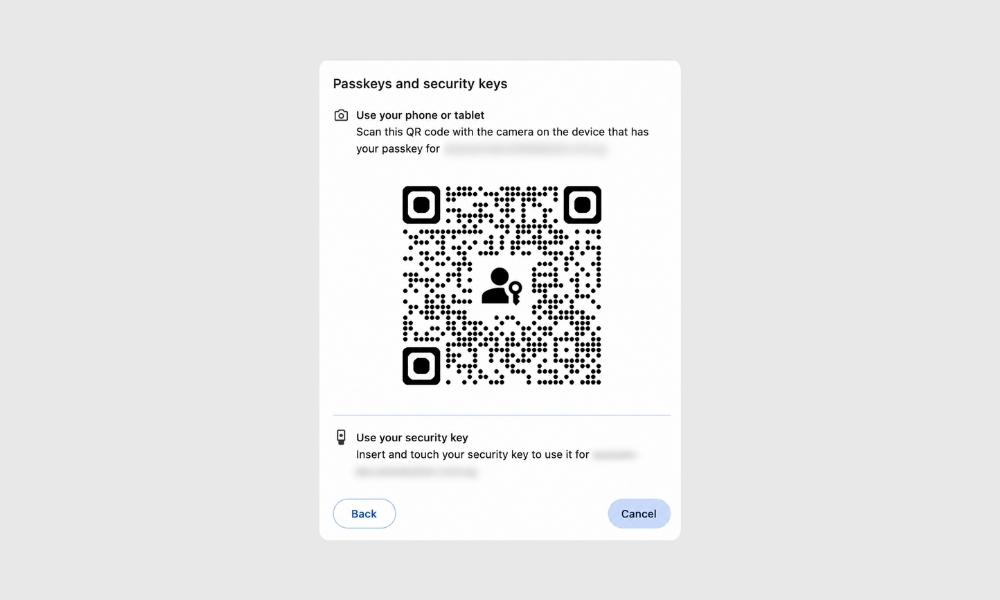
Follow the instructions displayed by your device or browser to verify your identity. If you select Use a phone or tablet, scan the QR code using the camera on the device where you want to save the passkey. Then, follow the instructions displayed on that device.
|
| Step 6 |
Once your identity has been successfully verified, you will be logged in to your Silver Bullion Account. |
If you encounter any problems while following this procedure, please contact us for assistance at [email protected] or call us at +65 6100-3040, +1 (848) 285-5466 (US callers), +44 114 697 7458 (UK callers), +31 970 102 57458 (EU callers), +61 480 097 458 (AU callers).